Send emails from your DMs to Kit
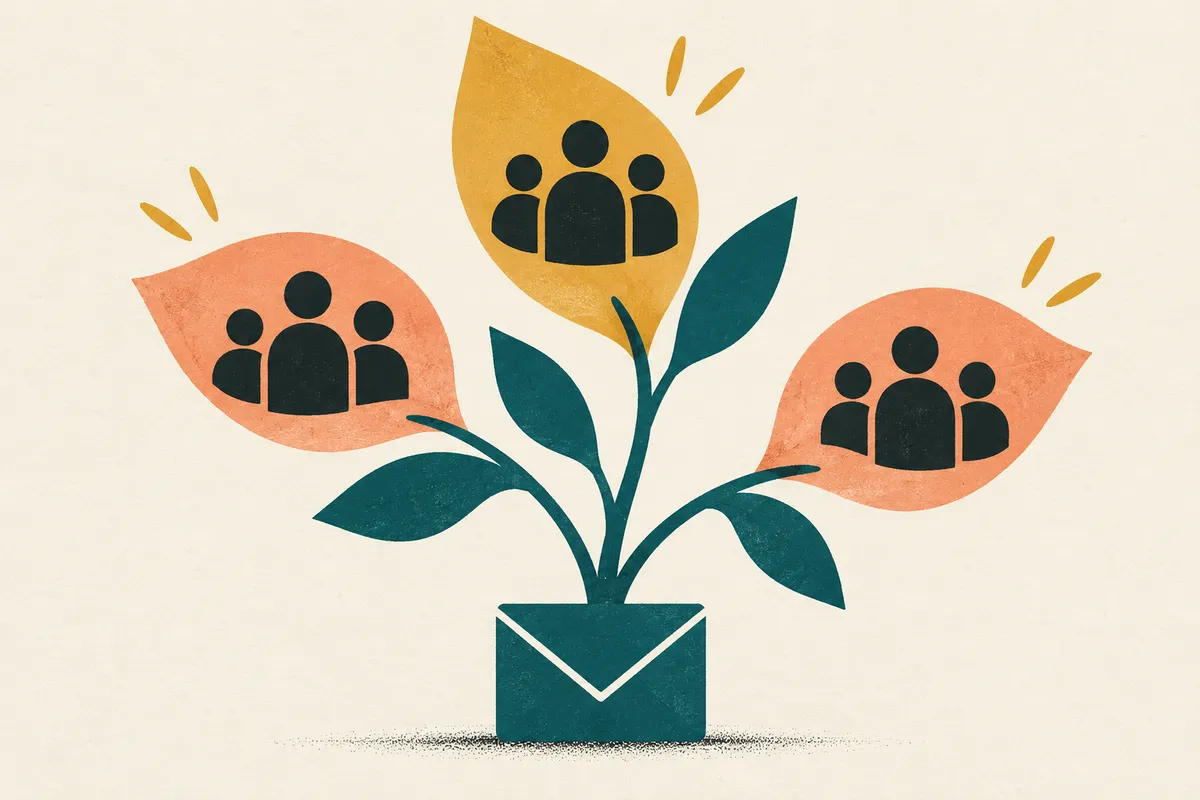
Connect once, and emails from your DMs land in Kit with a tag that can start your welcome sequence.
Updated
Quick answer
Open Contacts in DM Spark, choose Connect Kit, and approve DM Spark in Kit. Every email collected in your DMs is then added to Kit as a subscriber with the DM Spark tag, usually within a minute. Choose Add earlier contacts to send the emails you already have.
Emails from your DMs, in Kit
When a Spark asks for an email, DM Spark saves the reply to Contacts. Connect Kit and each email is also added to your Kit account as a subscriber, so your welcome sequence can start while the conversation is still fresh.
You connect once. After that, there's nothing to export or import.
Connect Kit
Open Contacts
In DM Spark, open Contacts. Find Send contacts to Kit and choose Connect Kit.
Approve DM Spark in Kit
Sign in to Kit if asked and approve DM Spark. Kit sends you back to Contacts, where the Kit row shows your account.
Add your earlier emails
New emails go to Kit from the moment you connect. To send the ones you collected before, choose Add earlier contacts.
Pick a tag
Subscribers are tagged DM Spark. To use another Kit tag, or none, choose Manage Kit (the gear on the Kit row).
You can also start from Kit: install DM Spark from the Kit App Store, sign in to DM Spark, and approve the connection.
Start a sequence from the tag
In Kit, create a visual automation that starts when the DM Spark tag is added, then add your welcome emails. To give each offer its own sequence, give each Spark its own tag (Tag them in Contacts, on the Spark's email step). Contacts get the same tag in Kit, so an automation can start from it.
To ask for emails in the first place, see how to collect emails through Instagram DMs.
What Contacts shows
- AddedHow many emails DM Spark has added to Kit.
- On the wayEmails waiting for the next sync, usually less than a minute away.
- Sync nowSends any emails still waiting, including ones that couldn't be added earlier.
- Kit columnWhether each contact is in Kit, on the way, or not sent, and why.
- Manage KitThe Kit tag new subscribers get, a CSV you can import into Kit yourself, and Disconnect.
Questions
How quickly do new emails reach Kit?
Usually within a minute or two of someone sharing their email in a DM.
Which plan do I need?
Connecting Kit works on every DM Spark plan. Asking for emails in DMs is part of Creator and Studio.
Who isn't sent to Kit?
Invalid addresses and anyone who opted out in your DMs. People who unsubscribed in Kit stay unsubscribed, and Contacts shows them as Unsubscribed in Kit.
What does DM Spark add to Kit?
The email address, as a subscriber with the tag you chose, plus the contact's tags from Contacts.
How do I disconnect?
In Contacts, choose Manage Kit (the gear on the Kit row), then Disconnect. New emails stop going to Kit. Subscribers already added stay in your Kit account.
Kit says Needs reconnecting. What happened?
Kit no longer accepts DM Spark's access, usually because the app was removed in Kit. Choose Reconnect Kit in Contacts and approve DM Spark again. Emails collected in the meantime are sent once you reconnect.
Keep reading
How to collect email addresses through Instagram DMs
A useful next step for people who ask about your business, with email capture and resource delivery.
DM Spark5 min read
Get newsletter signups through Instagram DMs
Share your newsletter’s opt-in form from a DM request.
DM Spark3 min read
Build a course waitlist from Instagram comments
Invite interested viewers to your upcoming course waitlist.
DM Spark3 min read
How to create a Spark
A walkthrough of the Spark editor, from trigger to go-live.
DM Spark3 min read